Camera类
我们之前学了很多的图形学知识和相关的程序,现在我们停下脚步,来好好整理一下我们学习的内容,我们将之前的视口代码和渲染代码合并到一个新的单类camera.h,这个类主要负责两项任务:
- 构建并发射光线到世界中
- 使用光线的信息来构建渲染图像
这次的重构,我们收集以下几个功能:
- ray_color()
- 图像设置
- 相机设置
- 渲染
新的相机类将包含两个公有方法:initialize()和render() 以及两个私有辅助方法 get_ray()和ray_color()
相机类的设计应该遵循尽可能的简单的方式,让我们在后续使用时操作尽可能的简单,使用默认构造函数,且避免复杂的初始化过程。同时允许用户通过直接赋值改变公共变量,避免复杂的setter方法。并且在渲染函数开始时,自动的调用initialize()操作,避免用户操作的复杂性。
现在我们先搭建其camera类的框架:
#ifndef RENDER_C___CAMERA_H
#define RENDER_C___CAMERA_H
#include "hittable.h"
class camera{
public:

    //这里设置公有的属性

    void render(const hittable& world){
    }
private:

    //这里放置私有的属性

    void initialize(){
    }

    color ray_color(const ray&r,const hittable& world) const{
    }
};
#endif //RENDER_C___CAMERA_H
然后一一将我们的方法和属性完善首先是将main中的上色部分ray_color移动到里面
class camera {
  ...
  private:
    ...
    color ray_color(const ray& r, const hittable& world) const {
        hit_record rec;

        if (world.hit(r, interval(0, infinity), rec)) {
            return 0.5 * (rec.normal + color(1,1,1));
        }

        vec3 unit_direction = unit_vector(r.direction());
        auto a = 0.5*(unit_direction.y() + 1.0);
        return (1.0-a)*color(1.0, 1.0, 1.0) + a*color(0.5, 0.7, 1.0);
    }
};
#endif
然后还有剩下的相机的建立和图像的设置也移动到里面:
#ifndef RENDER_C___CAMERA_H
#define RENDER_C___CAMERA_H

#include "hittable.h"

class camera{
public:
    double aspect_radio = 1.0;      //图像的宽高比
    int    image_width = 100;       //图像宽度的像素数

    void render(const hittable& world){
        initialize();

        std::cout << "P3\n" << image_width << " " << image_height << "\n255\n";
        for(int j=0;j<image_height;j++){
            std::clog << "\rScanlines remaining: " << (image_height - j) << ' ' << std::flush;
            for(int i=0;i<image_width;i++){
                auto pixel_center = pixel00_loc + (i*pixel_delta_u) + (j*pixel_delta_v);
                auto ray_direction = pixel_center - camera_center;
                ray r(camera_center,ray_direction);

                color pixel_color = ray_color(r,world);
                write_color(std::cout,pixel_color);
            }
        }
        std::clog << "\rDone.                   \n";
    }

private:
    int image_height;       //渲染图像的高度
    point3 camera_center;   //相机的中心
    point3 pixel00_loc;     //像素(0,0)的位置
    vec3 pixel_delta_u;     //向右的偏移值
    vec3 pixel_delta_v;     //向下的偏移值

    void initialize(){
        image_height = int(image_width/aspect_radio);
        image_height = (image_height < 1) ? 1 : image_height;

        camera_center = point3 (0,0,0);

        //确认视窗的设置
        auto focal_length = 1.0;    //焦距设置
        auto viewport_height = 2.0;
        auto viewport_width = viewport_height*(double (image_width)/image_height);

        //视图边缘的向量计算
        auto viewport_u = vec3(viewport_width,0,0);
        auto viewport_v = vec3(0,-viewport_height,0);
        //计算视图的像素间的水平竖直增量
        pixel_delta_u = viewport_u/image_width;
        pixel_delta_v = viewport_v/image_height;

        //计算左上角第一个像素中心的坐标
        auto viewport_upper_left = camera_center - vec3(0,0,focal_length) - viewport_v/2 - viewport_u/2;
        pixel00_loc = viewport_upper_left + 0.5*(pixel_delta_u+pixel_delta_v);
    }

    color ray_color(ray & r,const hittable& world){
        hit_record rec;
        if(world.hit(r,interval(0,infinity),rec)){
            return 0.5*(rec.normal + color(1,1,1));
        }

        vec3 unit_direction = unit_vector(r.direction());
        auto a = 0.5*(unit_direction.y()+1.0);
        return (1.0 - a)*color(1.0,1.0,1.0) + a*color(0.5,0.7,1.0);
    }
};

#endif //RENDER_C___CAMERA_H
我们使用新的类来实现对main函数的简化:
#include "rtweekend.h"

#include "camera.h"
#include "hittable.h"
#include "hittable_list.h"
#include "sphere.h"

int main(){
    hittable_list world;
    world.add(make_shared<sphere>(point3(0,0,-1),0.5));
    world.add(make_shared<sphere>(point3(0,-100.5,-1),100));

    camera cam;

    cam.aspect_radio = 16.0/9.0;
    cam.image_width = 800;

    cam.render(world);
}
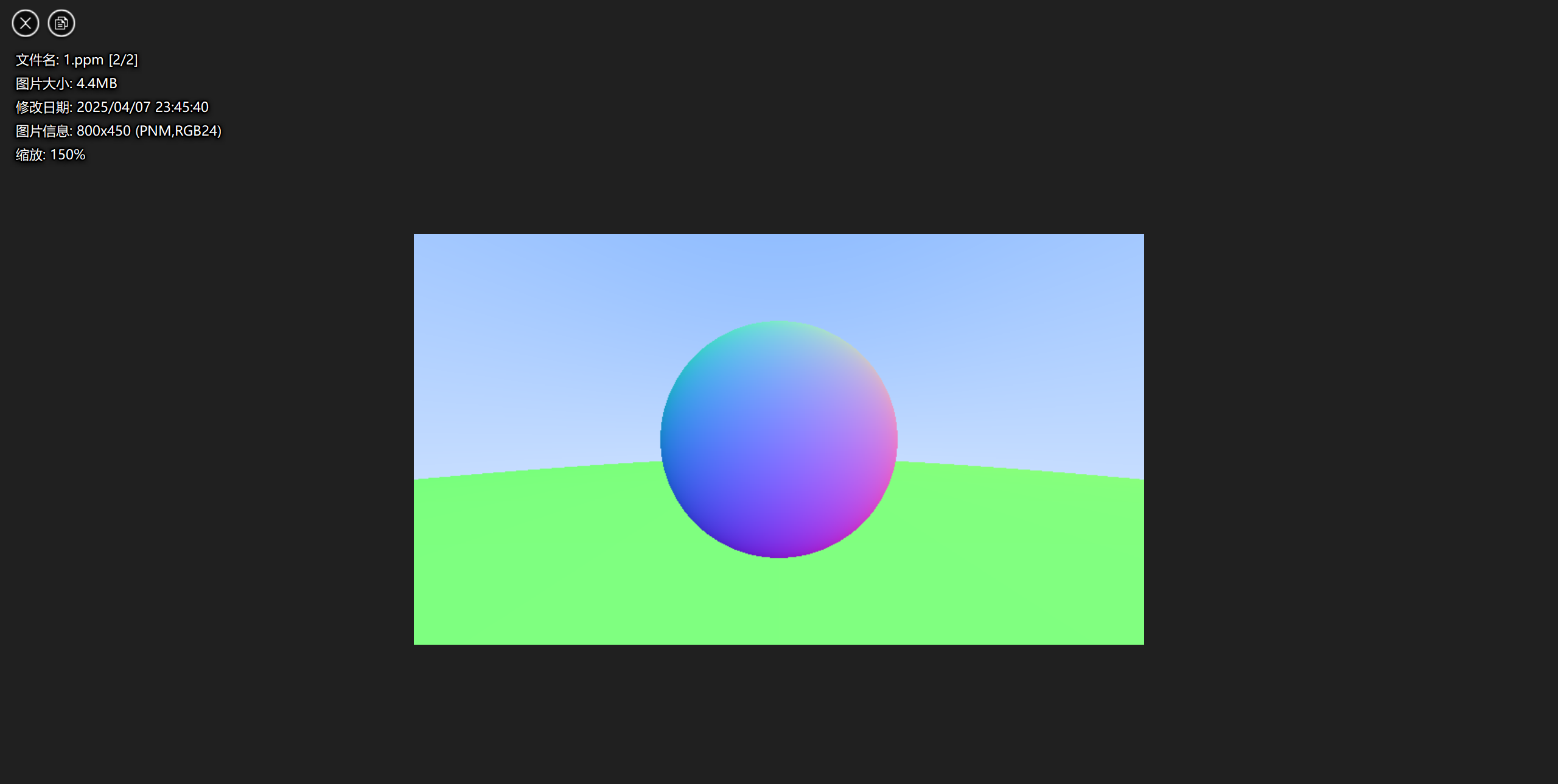
这样的操作极大的简化了后续我们的图形的渲染,你看这是渲染出来的放大版:
那么这一章就到此为止啦